MAX Custom Adapter 1.0.4
Supported Version
- MAX:V13.0.1+
- Tp Exchange:40.14.4.0.1+
Supported Ad Formats
-
Banner
-
Native Ad
- Note: The TradPlus backend only supports configuring self-rendering for the time being.
-
Interstitial
-
Rewarded video
Supported ad networks
- TradPlus Adx
- Max v13.0.1
MAX Adapter Integration Procedure
Step 1: Set up on MAX
-
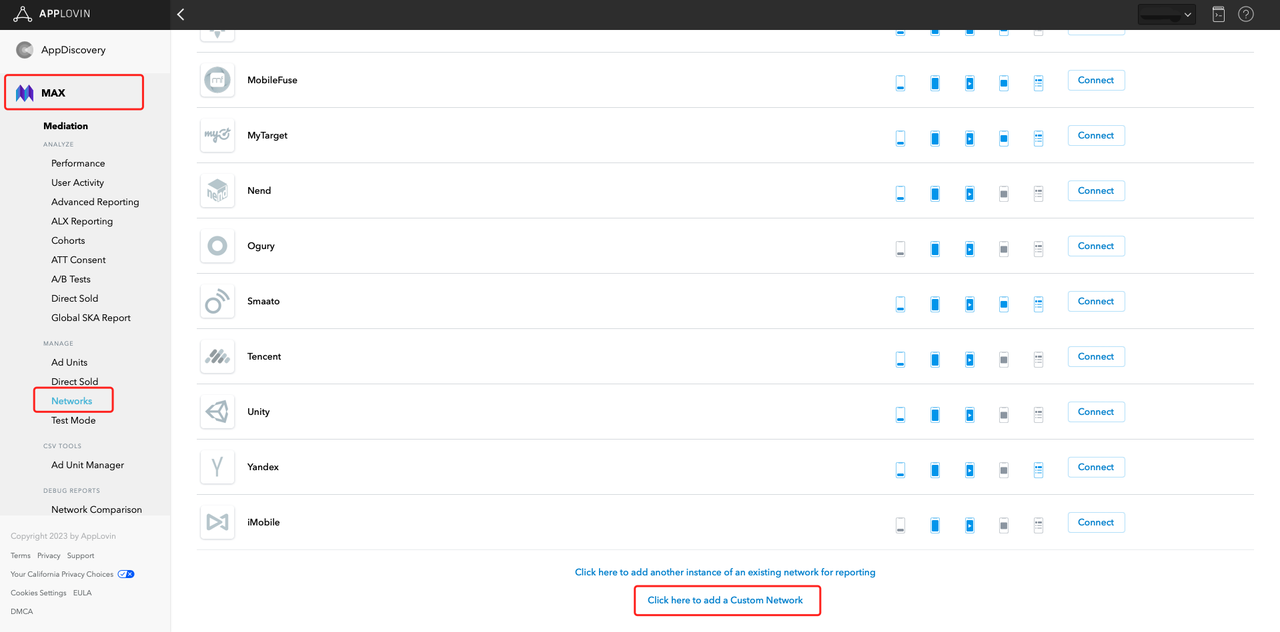
Add Custom Network In the MAX dashboard, select MAX > Mediation > Manage > Networks, slide to the bottom and click “Click here to add a Custom Network”.
-
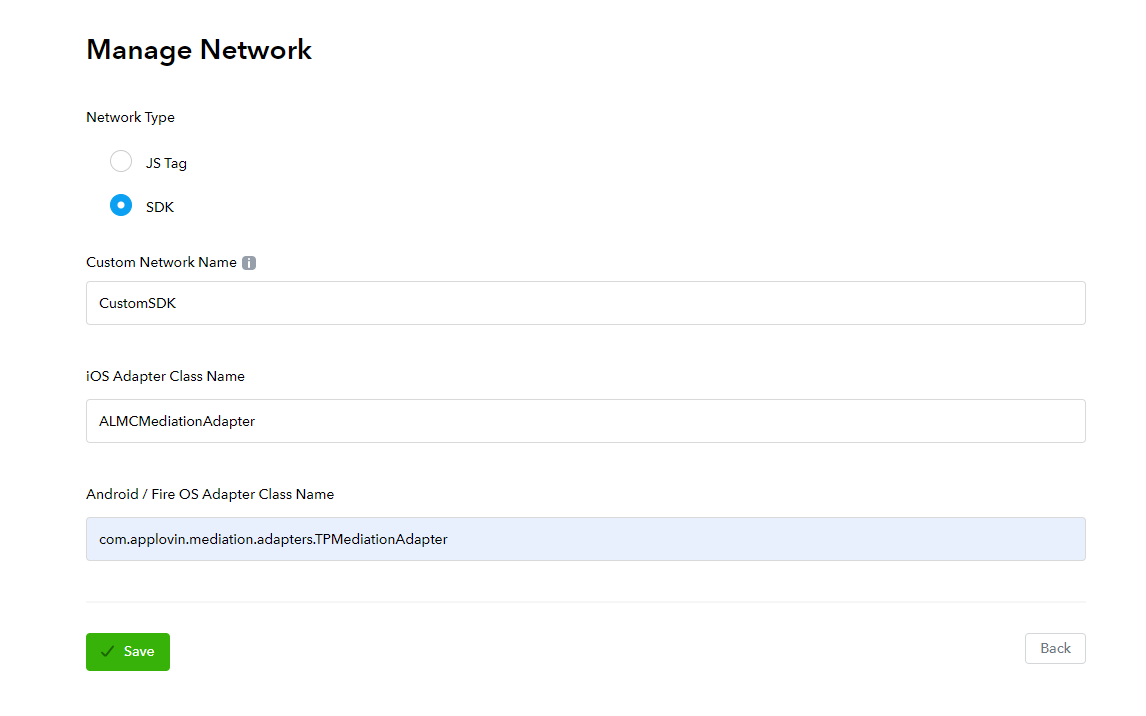
Fill in the information on the “Manage Network” page.
- Network Type:Select SDK
- Custom Network Name:you can customize by your own, e.g. CustomSDK
- Android Adapter Class Name:enter
com.applovin.mediation.adapters.TPMediationAdapter - Click “Save”
-
Enable Custom Network In the MAX dashboard, open MAX > Mediation > Manage > Ad Units and select Custom Network (SDK) - CustomSDK and set the corresponding App ID and Placement ID, which are required. Below is an example:


Step 2 Integrate SDK
Introduce dependencies
- In your project-level
build.gradlefile, add the Maven repository to thebuildscriptandallprojectssections:
 buildscript {
  repositories {
   ...
   mavenCentral()
  }
 }

 allprojects {
  repositories {
   ...
   mavenCentral()
  }
 }
- Add the CustomSDK & Adapter dependencies to the
app/build.gradlefile:
 dependencies {
  ...
  implementation(name: "customsdk_ads_1.0.4", ext: 'aar')
 }
- Integrate the Android TradPlus SDK as usual (Reference:TradPlus Android SDK Download & Documentation).
// TradPlus
 implementation 'com.tradplusad:tradplus:XXXX'
// TP Exchange
implementation 'com.google.code.gson:gson:XXX'
implementation 'com.tradplusad:tp_exchange:XXXXX'
Configure obfuscation
After enabling obfuscation, add the obfuscation configuration to proguard-rules.pro
-keep public class com.tradplus.** { *; }
-keep class com.tradplus.ads.** { *; }
-keep class com.applovin.mediation.adapters.** {*;}
Shrink Resources
The resources of the advertising SDK cannot be obfuscated. If you use third-party resources to shrink your framework, please exclude the SDK's resources in the whitelist.
R.string.tp_*
R.drawable.tp_*
R.layout.tp_*
R.id.tp_*
Step 3 Verify Ads
We recommend that you verify that the SDK was successfully integrated before the official release of your app by doing the following.
1.Turn off MAX Test Mode
Make sure Max test mode is turned off, start the app, filter the keyword AppLovinSDK in logcat and you will get the following log:

2. Test Mode
Use the test mode of TradPlus for testing, Test Mode Documentation
3. Test CustomSDK
The CustomSDK needs to be set to the highest priority during testing to ensure that MAX can request the CustomSDK during testing.


4. Check the initialization log
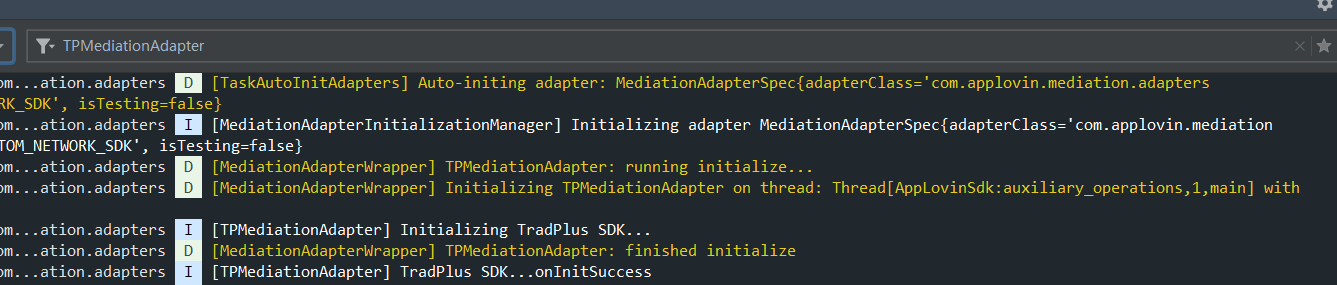
After completing the above steps, start the app, filter the keyword TPMediationAdapter in logcat and the following logs will be available:
5. Request and show ads
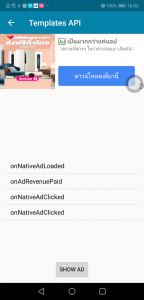
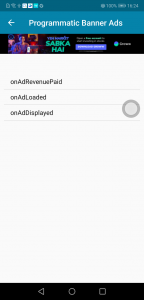
After successfully initializing the SDK, there will be requests to MAX and show ads. Test ad format as below:
Native
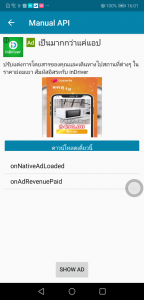
Manual Native Templates
Banner
Rewarded videos

Interstitial